WordPress Article
Backup Plugins for WordPress and What To Look For
Learn backup plugins for WordPress and what to look for with practical advice on setup, performance, SEO, and a small modern WordPress design angle for better results.
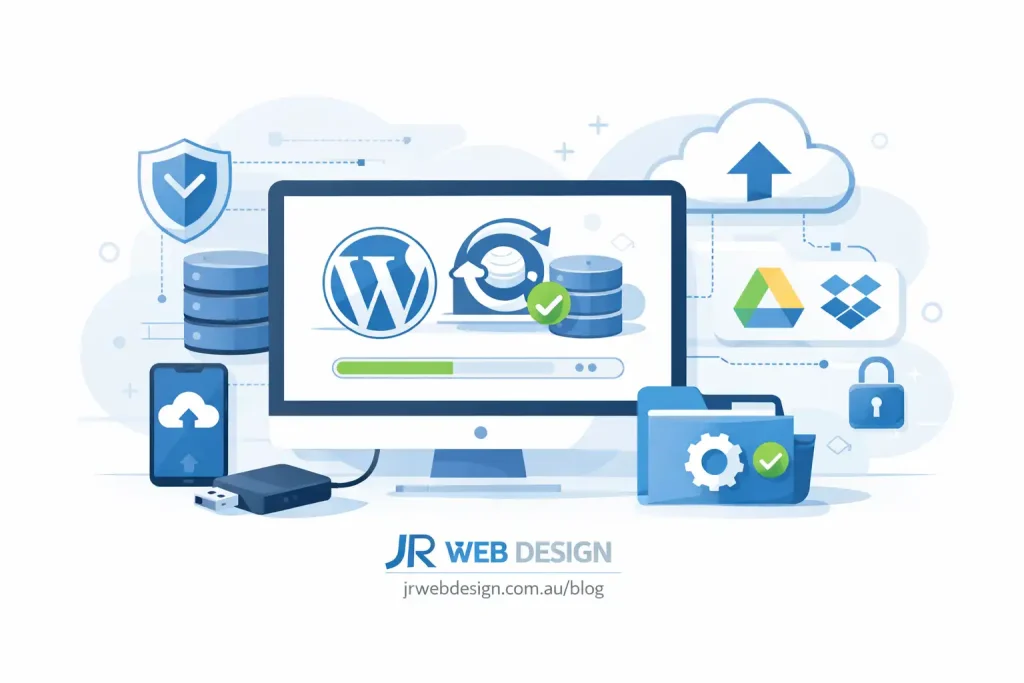
Backup your website, save your business.
Backing up your WordPress website is like having insurance for your digital assets. Imagine investing time and money into building your site, only to lose everything due to a hacker attack, server failure, or a simple user error. This is where backup plugins come in, providing a safety net that can save you from losing your hard work. With so many options available, it can be challenging to know which backup plugin to choose. In this article, we will delve into backup plugins for WordPress and what to look for when selecting one for your site.
Why Backing Up is Crucial
Every website owner should understand the importance of regular backups. Whether you run a small business, a blog, or a portfolio site, your online presence is vital to your success. A backup ensures that you can restore your site to its previous state if anything goes wrong. Frequent backups can help you recover from issues like plugin conflicts, WordPress updates gone wrong, or even malicious attacks. Remember, it’s not a matter of if something will go wrong, but when.
Features to Look For
When seeking the right backup plugin, consider the following features: First, ease of use is paramount. You want a plugin that simplifies the backup process, so even if you’re a beginner, you can navigate it effortlessly. A good plugin should have a straightforward interface that guides you through the setup process. You should also look for plugins that offer automated backups. Automation ensures that you don’t have to remember to back up your site manually. Look for options that allow you to schedule backups at regular intervals, such as daily, weekly, or monthly. This feature can save you a lot of hassle. Another essential feature is storage options. Some plugins allow you to store your backups on cloud services like Google Drive, Dropbox, or Amazon S3. This is crucial because you want to ensure that your backups are safe and accessible, even if your website goes down. Security is another consideration—ensure the plugin you choose offers encryption for your backups. This adds an extra layer of protection to your data. Finally, look for plugins that provide easy restoration options. The last thing you want is to run into issues when trying to restore your site. A good plugin should have a simple process to get your site back up and running.
Popular Backup Plugins
Several backup plugins have gained popularity in the WordPress community. UpdraftPlus is one of the most widely used plugins. It offers a user-friendly interface, automated backups, and various storage options. You can schedule backups and even restore your website with just a few clicks. Another excellent option is BackupBuddy, which provides a comprehensive backup solution. It includes features like site migration and a quick restoration process, making it a favourite among small business owners. Duplicator is also worth mentioning. While primarily known for migrating websites, it also serves as an effective backup tool. It allows you to create a complete copy of your site, making it easy to restore when needed. Each of these plugins has its strengths, so assess them based on your needs.
Setting Up Your Backup Plugin
Once you’ve chosen a backup plugin, setting it up is generally straightforward. The first step is to install the plugin through your WordPress dashboard. Navigate to Plugins, select Add New, and search for your chosen plugin. Click Install and then Activate. After activation, go to the plugin’s settings. You’ll typically find options for scheduling your backups, selecting storage locations, and setting up notification preferences. Make sure to configure these settings according to your needs. For instance, if you’re running an e-commerce site, you may want to schedule daily backups to ensure your customers’ data is always safe. After setting everything up, it’s a great idea to run a test backup. This will help you understand the process and confirm that everything is functioning as expected.
Modern WordPress Design Angle
Incorporating a modern web design into your WordPress site can enhance its overall aesthetic and functionality. A well-designed site not only attracts visitors but also encourages them to stay longer. When selecting a backup plugin, consider how it fits into your design strategy. For instance, ensure that the plugin you choose does not slow down your site’s performance. A backup plugin should operate seamlessly in the background, allowing your website to load quickly without interruption. Additionally, a modern design often emphasizes clean usability. Look for plugins that integrate well with your existing theme and maintain the overall visual consistency of your site. This can include ensuring that the backup plugin’s interface feels cohesive with the WordPress dashboard and is intuitive for users. Moreover, consider choosing plugins that offer design flexibility. Some plugins come with customisation options that allow you to brand your backup notifications and reports, ensuring they align with your site’s look and feel. This not only enhances user experience but also maintains your business’s professionalism.
Maintenance and Best Practices
Once you’ve set up your backup plugin, regular maintenance is essential. Periodically check your backup settings to ensure that they are still configured correctly. Over time, your website’s needs may change, and it’s important to adjust your backup schedule accordingly. Another best practice is to test your backups regularly. This means restoring your website from a backup to ensure everything works as expected. It’s better to discover issues during testing than when you need to restore your site in a crisis. Additionally, keep your backup plugin updated. Developers frequently release updates to improve functionality, security, and compatibility. Regularly check for updates in your WordPress dashboard and apply them as needed. Lastly, consider a multi-layered approach to backups. In addition to using a plugin, you might want to keep manual backups or use server-level backups provided by your hosting service. This adds another layer of security for your site.
Conclusion
In conclusion, choosing the right backup plugin for your WordPress site is crucial for protecting your digital assets. With the variety of options available, it’s essential to consider ease of use, automation, storage options, security, and restoration processes. Remember, a good backup strategy is a vital component of maintaining a healthy website. By integrating effective backup procedures with a modern design approach, you can ensure that your site runs smoothly while safeguarding your hard work. Now that you have the tools and knowledge, take action and secure your website today.